Dell iDRAC Tips and Tricks for Power Users
Advanced iDRAC features that most people overlook, from virtual console to automated alerts and firmware management.
Beyond the Basics
Most people use iDRAC for its virtual console and power controls. But iDRAC 9 has features that make server management significantly easier if you take the time to set them up.
Virtual Media
Virtual Media lets you mount an ISO file from your workstation to the server's virtual optical drive. This means you can install an operating system remotely without burning a disc or plugging in a USB drive. I use this constantly for OS installations and recovery boot media.
To use it, open the virtual console, go to Virtual Media, and map your local ISO file. The server sees it as a physical DVD drive.
Automated Alerts
iDRAC can send email alerts for hardware events: disk failures, memory errors, temperature warnings, power supply issues, and more. Configure SMTP settings in iDRAC and select which events trigger alerts.
I have alerts configured for anything that indicates a hardware problem. Getting an email about a predictive disk failure gives me time to order a replacement before the drive actually dies.
Firmware Updates
iDRAC can update server firmware (BIOS, iDRAC itself, drive firmware, NIC firmware) from its web interface. Dell hosts a firmware catalog that iDRAC can check against your current versions and identify what needs updating.
I schedule firmware reviews quarterly. Keeping firmware current prevents known bugs and closes security vulnerabilities.
Performance Monitoring
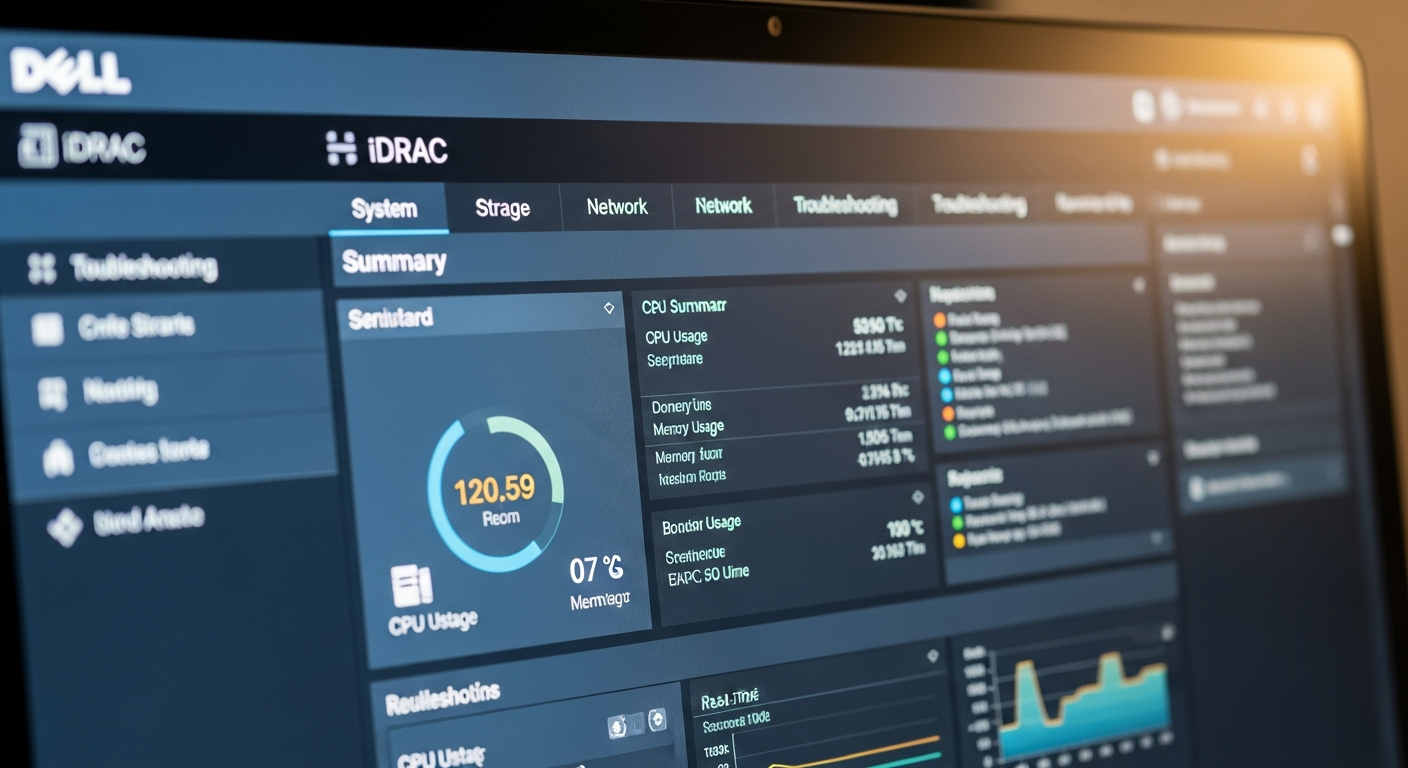
The built-in performance monitoring shows real-time and historical CPU, memory, I/O, and power usage. This data is useful for capacity planning and for correlating performance issues with specific hardware events.
Lifecycle Controller
The Lifecycle Controller is a separate environment built into iDRAC that provides hardware diagnostics, OS deployment tools, and RAID configuration. It boots independently of the OS and does not require any installed software. It is essentially a built-in recovery environment that is always available.
RACADM
For scripting and automation, RACADM is iDRAC's command-line interface. You can configure every iDRAC setting via RACADM commands, which means you can script the setup of multiple servers identically.
racadm set iDRAC.NIC.DNSRacName LabServer01
racadm set iDRAC.IPMILan.AlertEnable Enabled
racadm set iDRAC.Users.2.Password NewSecurePassword
This is how I configure iDRAC on new servers. Run the script, and every setting is applied consistently.