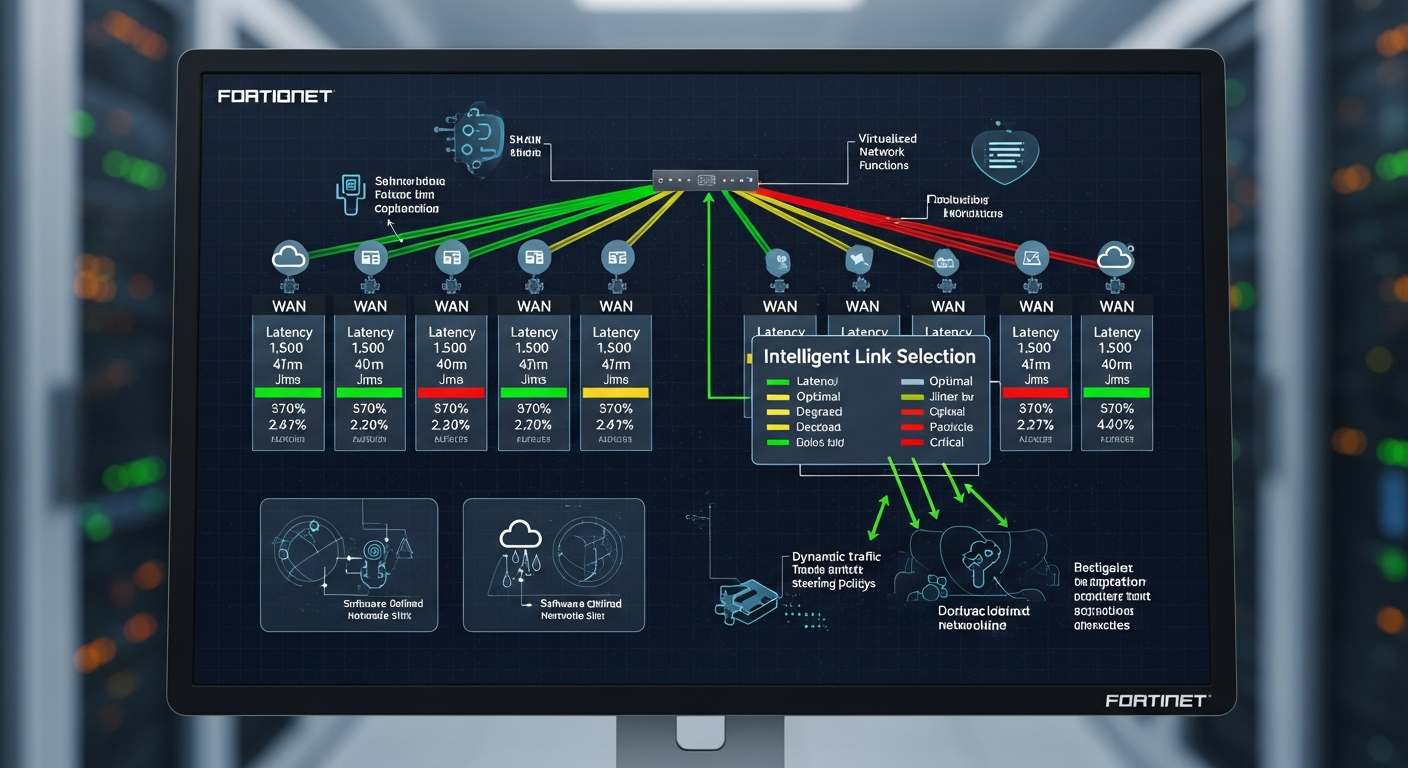
FortiGate SD-WAN: Intelligent WAN Link Selection
SD-WAN on FortiGate allows you to use multiple WAN links intelligently, routing traffic based on performance metrics rather than static routing tables.
What SD-WAN Solves
Traditional WAN routing uses static routes or simple metrics to decide how traffic exits the network. A primary link fails, and you wait for the failover route to take over. Performance degrades silently. You have no visibility into what is actually happening across your WAN links.
SD-WAN adds active performance measurement and policy-based routing. The FortiGate constantly measures latency, jitter, and packet loss on each WAN link and makes routing decisions based on actual conditions.
Basic SD-WAN Setup
First, create an SD-WAN zone and add your WAN interfaces:
config system sdwan
  set status enable
  config zone
    edit "virtual-wan-link"
      set members wan1 wan2
    next
  end
  config members
    edit 1
      set interface wan1
      set gateway 203.0.113.1
    next
    edit 2
      set interface wan2
      set gateway 198.51.100.1
    next
  end
end
Performance SLAs
Define what acceptable performance looks like for each type of traffic:
config system sdwan
  config health-check
    edit "Google_DNS"
      set server "8.8.8.8"
      set protocol ping
      set interval 500
      set failtime 3
      set recoverytime 5
      set latency-threshold 150
      set jitter-threshold 30
      set packetloss-threshold 1
    next
  end
end
Rules
SD-WAN rules define which traffic uses which links based on the performance SLAs:
config system sdwan
  config service
    edit 1
      set name "Business_Apps"
      set dst "critical-servers"
      set priority-members 1 2
      set sla "Google_DNS" 1 2
    next
  end
end
The Result
Traffic automatically routes over the best-performing link. When a link degrades below your SLA thresholds, traffic shifts to the healthier link without manual intervention. You get visibility into link performance through the FortiGate dashboard and can build detailed reports on WAN utilization over time.