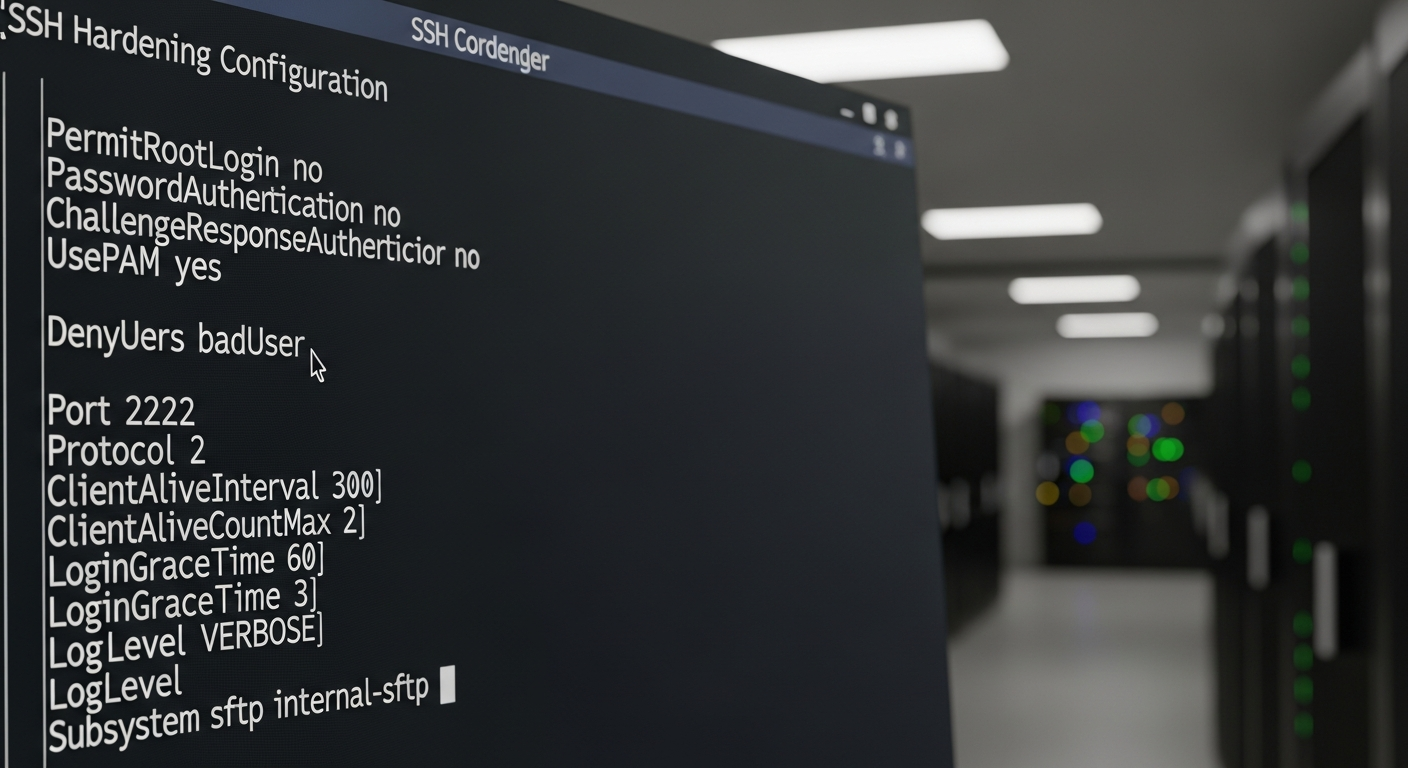
SSH Hardening: Locking Down Remote Access
Default SSH configuration is functional but not secure. Here is how to harden it against the most common attack vectors.
Why Default SSH Is Not Enough
A server with SSH exposed on port 22 will see hundreds or thousands of brute-force login attempts per day. Most of them come from automated bots scanning the internet. Default SSH configuration allows password authentication, which means a weak password is all that separates your server from unauthorized access.
Key-Based Authentication
The most important change is disabling password authentication and requiring key pairs. Generate a key pair on your workstation and copy the public key to the server:
ssh-keygen -t ed25519 -C "admin@myserver"
ssh-copy-id -i ~/.ssh/id_ed25519.pub user@server
Then in /etc/ssh/sshd_config:
PasswordAuthentication no
PubkeyAuthentication yes
AuthorizedKeysFile .ssh/authorized_keys
Other Critical Settings
# Disable root login entirely
PermitRootLogin no

# Limit login attempts per connection
MaxAuthTries 3

# Use only modern algorithms
KexAlgorithms curve25519-sha256,diffie-hellman-group16-sha512
Ciphers aes256-gcm@openssh.com,chacha20-poly1305@openssh.com
MACs hmac-sha2-256-etm@openssh.com,hmac-sha2-512-etm@openssh.com

# Idle timeout
ClientAliveInterval 300
ClientAliveCountMax 2

# Limit which users can log in
AllowUsers admin deployer

# Disable X11 forwarding unless needed
X11Forwarding no
Port Change and Fail2Ban
Changing SSH to a non-standard port (e.g., 2222) reduces automated scanning noise significantly. It is security by obscurity and not a substitute for real controls, but it is a low-cost way to reduce log clutter.
Fail2ban monitors failed login attempts and automatically blocks IPs after a configurable number of failures:
apt install fail2ban
systemctl enable fail2ban
With key-based auth, a changed port, and fail2ban in place, your SSH attack surface is dramatically reduced.