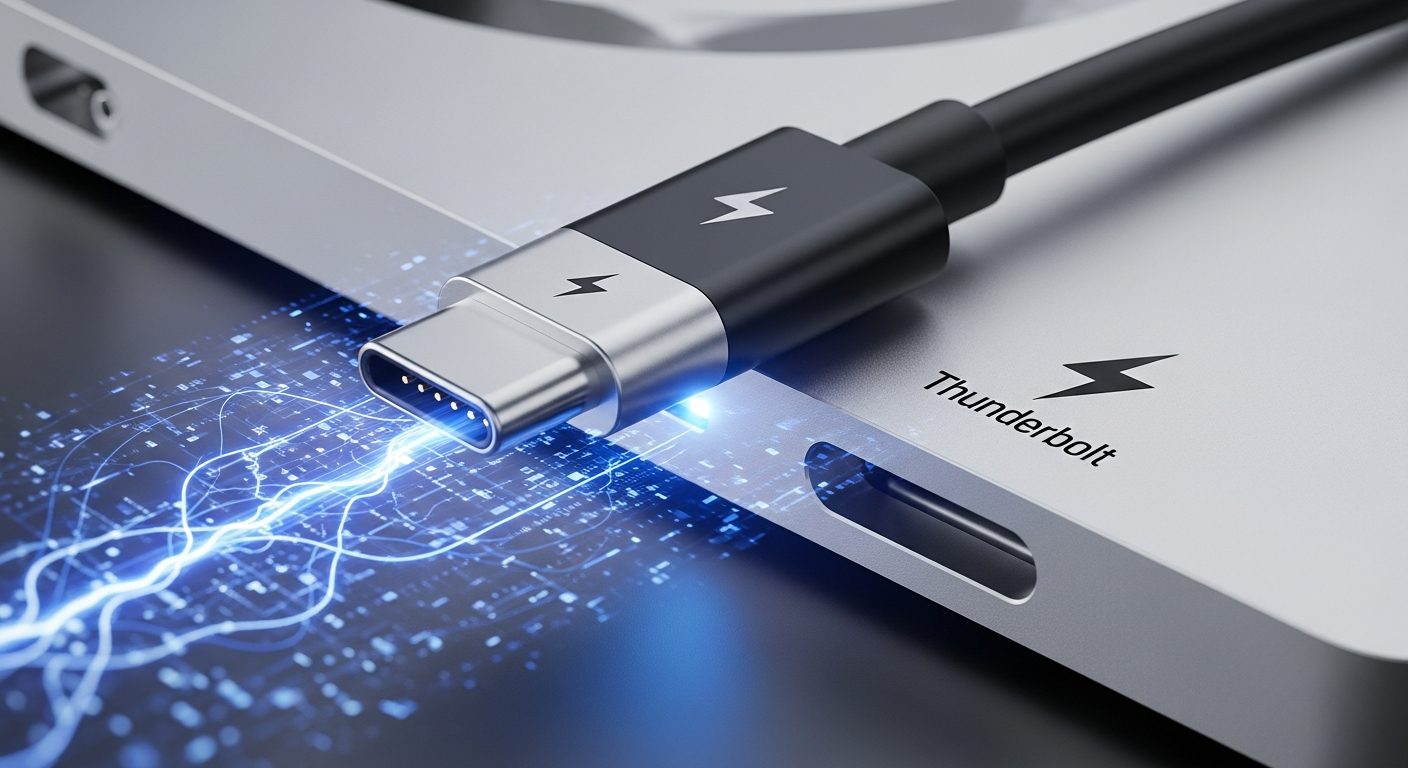
Thunderbolt Networking: Apple's Approach to High-Speed Connectivity
How Thunderbolt networking works, where it fits, and why it is both brilliant and frustrating for mixed environments.
What Thunderbolt Networking Is
Thunderbolt supports native IP networking when you connect two Macs with a Thunderbolt cable. The connection appears as a standard network interface, and you get speeds up to 10 Gbps (Thunderbolt 3/4) with extremely low latency. No switches, no transceivers, no configuration beyond plugging in a cable.
For direct Mac-to-Mac file transfers, it is the fastest option available. Thunderbolt Bridge in macOS makes it completely transparent to applications.
Where It Works
Thunderbolt networking is fantastic for specific scenarios: editing teams working with shared storage, direct transfers between workstations, and high-speed connections between a Mac Pro and a NAS. In a creative studio environment, it solves a real problem elegantly.
In my lab, I have used Thunderbolt networking between my Mac Pro and a Mac Mini for fast data transfers during media processing workflows. The speed is impressive and the latency is nearly zero.
Where It Falls Short
Thunderbolt networking is point-to-point. You cannot build a network fabric with Thunderbolt. There are no Thunderbolt switches. If you need to connect more than two devices, you need to use standard Ethernet.
It is also Apple-only in practice. While Thunderbolt is technically an Intel/Apple standard that is now part of USB4, the native networking feature is a macOS thing. You cannot use Thunderbolt networking between a Mac and a Linux server.
My Take
Thunderbolt networking is a great tool for specific problems, and a terrible general-purpose networking solution. I use it when I need fast direct connections between Apple devices, and I use 10GbE for everything else.
The ideal setup, which is what I have, is both. My Mac Pro has a Mellanox 10GbE card for connecting to the general network and a Thunderbolt port for direct connections when I need the extra speed.