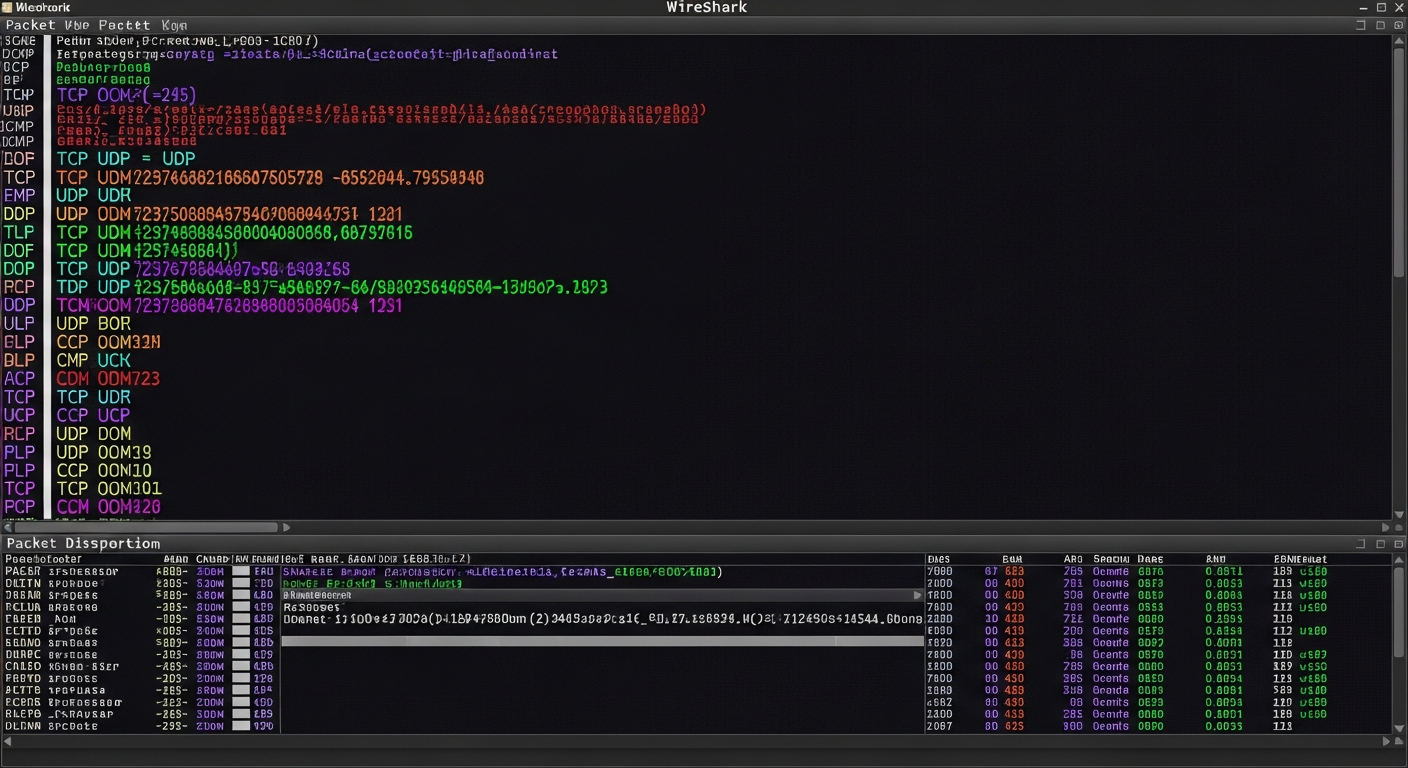
Practical Packet Analysis with Wireshark
How I use Wireshark for real troubleshooting and competitive cybersecurity, not just looking at pretty packets.
More Than a Packet Viewer
Wireshark is the most powerful network analysis tool available, and it is free. But most people only scratch the surface. They open a capture, scroll through packets, and get overwhelmed by the volume of data. The real power of Wireshark comes from knowing how to filter, follow streams, and extract the information you actually need.
Capture Filters vs Display Filters
Capture filters limit what Wireshark records. Display filters limit what you see after capture. For troubleshooting, I usually capture everything and use display filters to narrow down. For long-running captures, I use capture filters to avoid filling the disk.
Common display filters I use constantly:
ip.addr == 10.0.20.5
tcp.port == 443
dns
http.request
tcp.analysis.retransmission
Following Streams
When I am troubleshooting a specific connection, I right-click a packet and select "Follow TCP Stream." This reconstructs the entire conversation between two endpoints in order, which is invaluable for understanding what happened in an HTTP request, an SMTP exchange, or any other protocol.
Competition Use
In NCL competitions, Wireshark challenges typically give you a capture file and ask you to extract specific information. Common tasks include identifying what credentials were transmitted in plaintext, finding DNS queries to suspicious domains, and reconstructing file transfers.
The key to speed in competitions is knowing your filters cold. If you have to look up filter syntax during a timed challenge, you are losing minutes. I practice by generating my own captures in the lab and querying them until the syntax is automatic.
Coloring Rules
I customize Wireshark's coloring rules to highlight problems immediately. TCP retransmissions get a red background. DNS errors get yellow. RST packets (connection resets) get orange. This means I can open a capture and immediately spot problem areas without reading every packet.
Export and Scripting
For large-scale analysis, I use tshark (Wireshark's command-line counterpart) to extract specific fields into CSV format, then process the data with Python. This is much faster than scrolling through millions of packets in the GUI.
tshark -r capture.pcap -T fields -e frame.time -e ip.src -e ip.dst -e tcp.dstport -Y "tcp.flags.syn==1" > connections.csv
Building Intuition
The best way to get good at packet analysis is to capture your own traffic and study it. Set up a span port on your switch, capture for an hour, and explore what you see. You will learn more about how protocols actually work than any textbook can teach.